Sometimes, you may face a situation where you need to track outbound link clicks in your WordPress website. If you’ll search for an answer to this question on the web, you’ll find a few solutions which require you to modify your analytics code, place a new snippet or add a click event to each and every external link you want to track on your website. All these solutions requires you to edit the head section of your website’s HTML. For a person who is not familiar with HTML coding, this can be a hectic task for him. For a person who prefer doing things the easier way, to help you out with this task, there’s a free plugin called Google analytics for WordPress. This plugin makes your site analytics more powerful by allowing you to track behavior of the visitors to your site easily (including clicks on external links). So, the answer to the question mentioned in the 1st line is:
- Install this plugin on your WordPress portal.
- Activate it and go to its settings page.
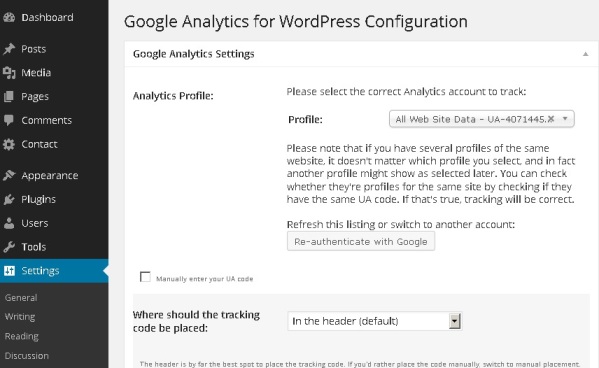
- Autheticate the plugin with your GA account.
- If you’ve multiple websites configured in your GA account, carefully select the tracking ID from the drop down box.
- Tick the track outbound clicks, downloads and show advanced settings check-boxes.
- Now, click on the update settings button.
- Scroll down and locate the ignore users drop down, in that select administrator if you don’t want GA to track your visits.
- Now, locate track full URL label and select track the complete URL option.
- Scroll down further and just click the blue colored update settings button.
- Done!
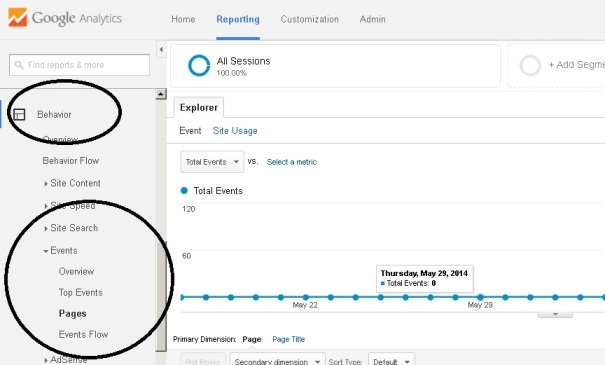
Now, GA will start tracking the clicks on all external links on your site in real time. To view this data, go to the behavior section of your analytics account, select events and then click on the pages tab.
