Since 1 week, i was searching for an answer to the question How to Remove Preview DNS URL’s from Google (As google had indexed all the URL’s of the preview version of my website/blog)?. After exploring the internet +goDaddy’s forums and failing to find the right answer, i decided to find a solution for this problem myself. I knew that Google webmaster tools had modules to remove indexed URL’s, hence i followed the below listed steps to remove all the preview DNS url’s from Google’s search results
Tutorial to Remove Preview DNS URL’s from the Google search results:-
Step 1:Create an Account with Google Webmaster/Sign into you Google Webmasters account ( If you don’t know what google webmaster is, you can refer my post “Must know Google Services for Webmasters ” from the related posts section (scroll down) )
Step 2:From the webmaster tools dashboard, click on the Add a site button
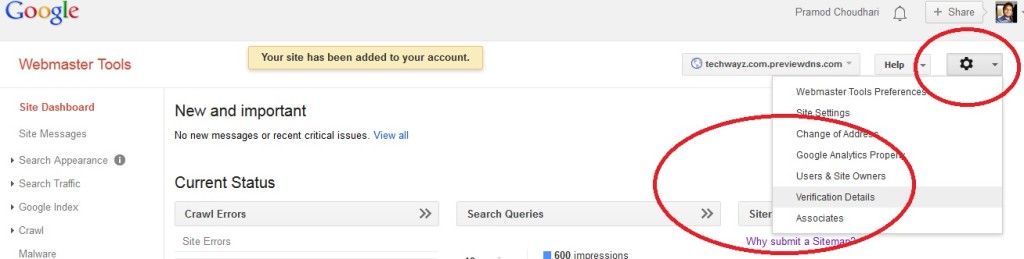
Step 3:Click on the URL of the newly added Preview DNS site to enter into its dashboard.Once you enter the site’s dashboard click on the gear box located at the top right corner on the site’s dashboard. Once you’ve clicked, you’ll see a popup menu containing different menu items. From the popup menu, click on the verification details menu item.
Step 4: On clicking the verification details menu-item you’ll be forwarded to the site verification dashboard, click on “Verify using a different method” and select the upload a file method of verification and follow the instructions (Download the HTML file to your hard disk, Upload it to the root directory of site [ by using FTP method or browse files module from your goDaddy hosting account’s CPanel).
Step 5: Once you’ve uploaded the file to the root directory / folder of your website/blog, click on the verify button from the site verification dashboard of the Google Webmaster tools.
Step 6: Once the verification has been confirmed, Go back to your site’s dashboard and click on the remove URL menu item as show below :-
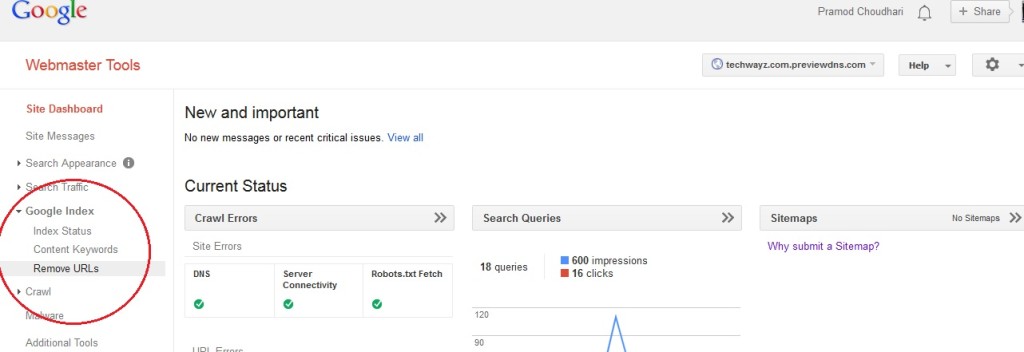
Step 7: One clicking the remove URL’s, you’ll b forwarded to the remove URL’s dashboard. Once, fowarded. .you” be able to see a button named create a new URL request, click on tis button and enter the domain name appended with the string previewdns.com in the text-box you’ll see. Once you’ve enetered the domain name appeneded with previewdns.com string, clcik on the continue button.
Step 8: Now you’ll be forwarded to the confirmation dashboard. From this dashboard, click on the submit request button as shown in the below screen shot.
Step 9 : Done ! Now wait till your request gets completed by Google.
Step 10: As you don’t want Google to index the preview DNS URL’s again, simply add the below line to the Robot’s.txt file by the replacing the your_website_name with the name for your website.
Disallow: your_website_name.com.previewdns.com
